
You’ve placed your phone on the wireless charging pad, but nothing’s happening—no light, no chime, no battery boost. Before you blame the charger or your phone, know that most wireless charging failures come down to a handful of fixable issues. Whether it’s a misaligned coil, a bulky case, or an underpowered adapter, you can troubleshoot this yourself in minutes.
Key Takeaways
- Remove thick cases, metal accessories, and wallet attachments that block the wireless signal and trigger foreign object detection errors.
- Center your phone on the charging pad and adjust placement until you hear a confirmation chime or see the LED indicator.
- Use the supplied wall adapter or a USB-C PD adapter rated at 18W or higher for optimal charging speed.
- Verify your phone supports wireless charging by checking manufacturer specs for “Qi Wireless Charging” compatibility.
- Test with a second Qi device to determine whether the problem lies with your phone or the charging pad.
Confirm Your Phone Supports Wireless Charging
Have you ever wondered why your phone won’t charge when you place it on a wireless pad? The answer might be simple: your phone may not support wireless charging at all.
Wireless charging requires a built-in induction coil—hardware that many budget phones lack entirely. To check if your device is compatible with wireless charging, visit your manufacturer’s website and look under your phone specs in the Battery or Power section. You’re searching for terms like “Wireless Charging” or “Qi Wireless Charging.”
Most major flagships work with Qi wireless charging pads, including iPhone 8 and newer, Pixel 3 and later, and Samsung Galaxy S6 onward. Some phones only handle basic 5–10W speeds, while others accept fast wireless charging up to 15–25W.
Find the Perfect Alignment Between Phone and Charging Pad
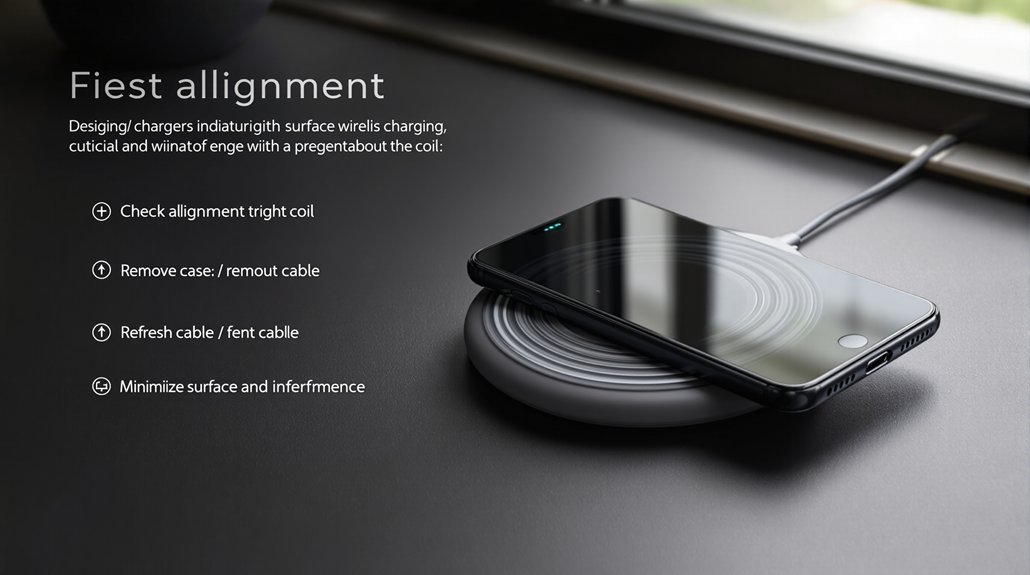
The secret to reliable wireless charging comes down to one thing: getting your phone’s internal coil lined up with the coil inside your charging pad. Most Qi-enabled phones have their charging coil centered in the device, so place your phone centered on the pad. If charging doesn’t start, slide it slowly until you hear the confirmation chime.
| Problem | Cause | Fix |
|---|---|---|
| No charging | Thick phone cases (>4mm) | Remove case before charging |
| Weak connection | Camera bump lifting phone | Let bump hang off pad edge |
| Intermittent charging | Misalignment | Rotate phone 90° and reposition |
Metal accessories, magnetic mounts, and PopSockets block the signal entirely. Remove them before attempting alignment. Look for LED guides or center markings on your pad to find the sweet spot faster.
Remove Cases, Accessories, and Physical Obstructions
Strip away anything sitting between your phone and the charging pad before troubleshooting further.
Clear the gap between your phone and charging pad—cases, cards, and debris are the silent killers of wireless power transfer.
Phone cases thicker than 5 mm—especially rugged or battery cases—weaken wireless charging by increasing the distance between coils. Metal objects, magnetic mounts, wallet attachments, and credit cards trigger foreign object detection, which stops charging or causes overheating.
Clean your charger surface and phone back thoroughly.
Dust, lint, or adhesive residue can lift your device just enough to disrupt coil alignment and slow charging speeds.
If your phone vibrates or displays a blinking error, remove all accessories and test with the naked phone.
Successful charging confirms the obstruction.
For phones with a camera bump, reposition so the main body sits centered on the pad, ensuring proper alignment with the internal coil.
Check Your Power Source and Adapter Wattage
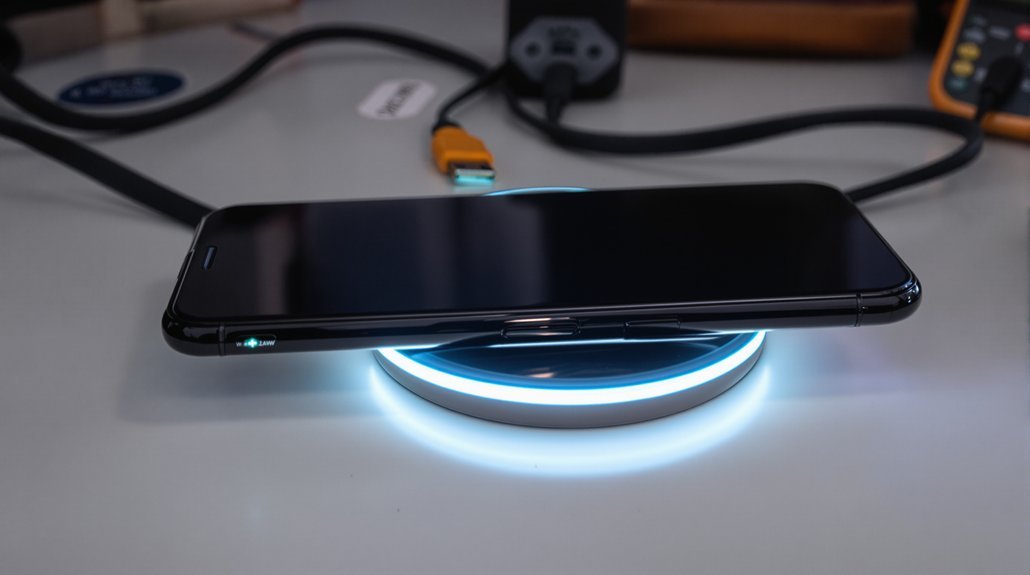
Your wireless charging pad needs adequate power to deliver fast, reliable charging—and that power starts at the wall outlet.
Many pads require 9–12V input to enable fast wireless charging speeds, but old phone chargers or laptop USB ports often supply just 5W. That’s insufficient power for anything beyond a trickle charge.
Here’s how to ensure your power source matches your pad’s needs:
- Use the wireless charger’s supplied wall adapter or a USB-C PD adapter rated at 18W or higher.
- Check your pad’s label for its required adapter wattage—many need 18W input to deliver 15W output.
- Swap in a high-power cable rated for 3A or 5A, since thin cables drop voltage.
- Test a different outlet if the pad’s LED blinks or shows errors.
Understand Qi Compatibility and Charging Speed Standards
Even with the right adapter and cable in place, your wireless charger won’t perform well if it doesn’t match your phone’s charging standard.
Matching your charger to your phone’s charging standard is essential for optimal wireless charging performance.
Most modern devices are Qi-compatible, meaning they’ll work on any Qi pad. However, wireless charging speeds vary markedly based on what both devices support.
Basic Qi pads deliver just 5W, while fast wireless chargers can push 15–25W. Your phone and charger must both support these higher wattages to benefit. If you own an iPhone, MagSafe chargers use magnetic alignment to deliver faster, more consistent power—up to 15W or more.
Keep foreign objects away from your charging pad. Qi-certified chargers use thermal management and detection systems that reduce power when they sense metal or excessive heat, which protects your device but slows charging.
Troubleshoot Overheating Issues During Wireless Charging
Because wireless charging transfers energy through electromagnetic induction rather than direct contact, some heat generation is completely normal—but excessive warmth signals a problem you’ll want to address.
Here’s how to troubleshoot overheating:
- Center your charging coil and remove any case or magnetic accessory, since misalignment forces the system to work harder and generates extra heat.
- Use a high‑wattage adapter rated at 18–20W or higher—underpowered chargers actually run hotter while delivering less juice.
- Clean pad and phone surfaces of dust, lint, or metal debris to prevent foreign-object detection (FOD) warnings and unwanted heating.
- Test with different pad and phone combinations to isolate whether the issue lies with your device or charger.
If temperatures exceed 42°C (107.6°F), pause charging until things cool down.
Test Different Devices and Chargers to Isolate the Problem
Narrowing down a wireless charging problem takes a bit of detective work, but swapping devices and chargers will quickly reveal where the fault lies.
Start by placing a second Qi device on your wireless charging pad. If an iPhone 11 or Pixel 5 charges fine but your original phone doesn’t, the issue likely sits with your phone’s internal coil. Next, test your original phone on a different, known-good charger to confirm.
Don’t overlook power delivery problems. Swap in a quality USB‑C cable and a power adapter rated at 18–20W or higher. Remove any thick or metal case from both phones during testing—cases often block the signal.
If multiple phones overheat or cycle on one pad, you’re dealing with a defective pad. Replace it before contacting support.
Contact Modern Power Solutions for Persistent Charging Issues
When swapping devices and cables still leaves you stuck, it’s time to reach out to Modern Power Solutions for help. Before you call or email, gather a few key details to speed up the process.
- Your charger model and serial number—you’ll find these on the bottom of your wireless charging pad.
- The power adapter and cable specifications you’re currently using.
- LED indicator behavior—note whether it’s solid, blinking, or off entirely.
- Test results from a second Qi-compatible phone, showing whether the issue follows the charger or your device.
Include your phone model, OS version, and troubleshooting steps you’ve already tried.
Don’t forget your purchase date and warranty information—most certified chargers require proof of purchase for coverage claims.
Frequently Asked Questions
How Do I Fix My Wireless Charging?
Check your battery alignment first—slide your phone around the pad to find the sweet spot.
Remove thick cases since case interference blocks the coil.
Look for any foreign object like cards or metal items underneath.
If charging speed is slow, verify adapter compatibility by using an 18W+ power brick.
Try a software reset if problems continue.
Watch for overheating protection warnings, and inspect for coil damage if nothing works.
Why Can’t I Charge My Phone on a Wireless Charger?
Your phone won’t charge wirelessly for several reasons. Coil misalignment is most common—try repositioning your device until you see the charging indicator.
Case interference from thick, metal, or magnetic accessories blocks the connection, so remove them.
Adapter incompatibility matters too; use at least an 18W adapter.
Software bugs, water damage, or foreign objects between the phone and pad can also cause issues. Check your battery alignment and test with another charger.
Are There Any Problems With Wireless Charging?
Yes, wireless charging has a few common issues. Coil alignment matters—if your phone’s off-center, it won’t charge.
Case interference from thick or metal cases blocks the signal, and metal objects or magnetic accessories can trigger safety shutoffs.
You’ll notice charging heat during sessions, which can accelerate battery degradation over time.
Software bugs occasionally disrupt communication, and mismatched charging standards between devices cause compatibility headaches.
How to Make Wireless Charging Work Better?
Optimize placement by centering your phone so the coils align properly—even small shifts affect speed.
Remove your case if it’s thick, metal, or holds cards.
Use certified pads with at least 18W adapters for best results.
Clean surfaces on both devices to guarantee firm contact.
Reduce interference by removing metal accessories and magnetic mounts.
Finally, update firmware on your phone and charger to fix bugs and improve efficiency.
Bottom Line
You’ve now got the tools to tackle most wireless charging issues on your own. Start with the basics—check compatibility, perfect your alignment, and remove any obstructions. If problems persist, test your power source and try different devices to pinpoint the culprit. Most fixes take just minutes. For stubborn issues that won’t resolve, reach out to Modern Power Solutions. We’re here to help you get back to effortless charging.